
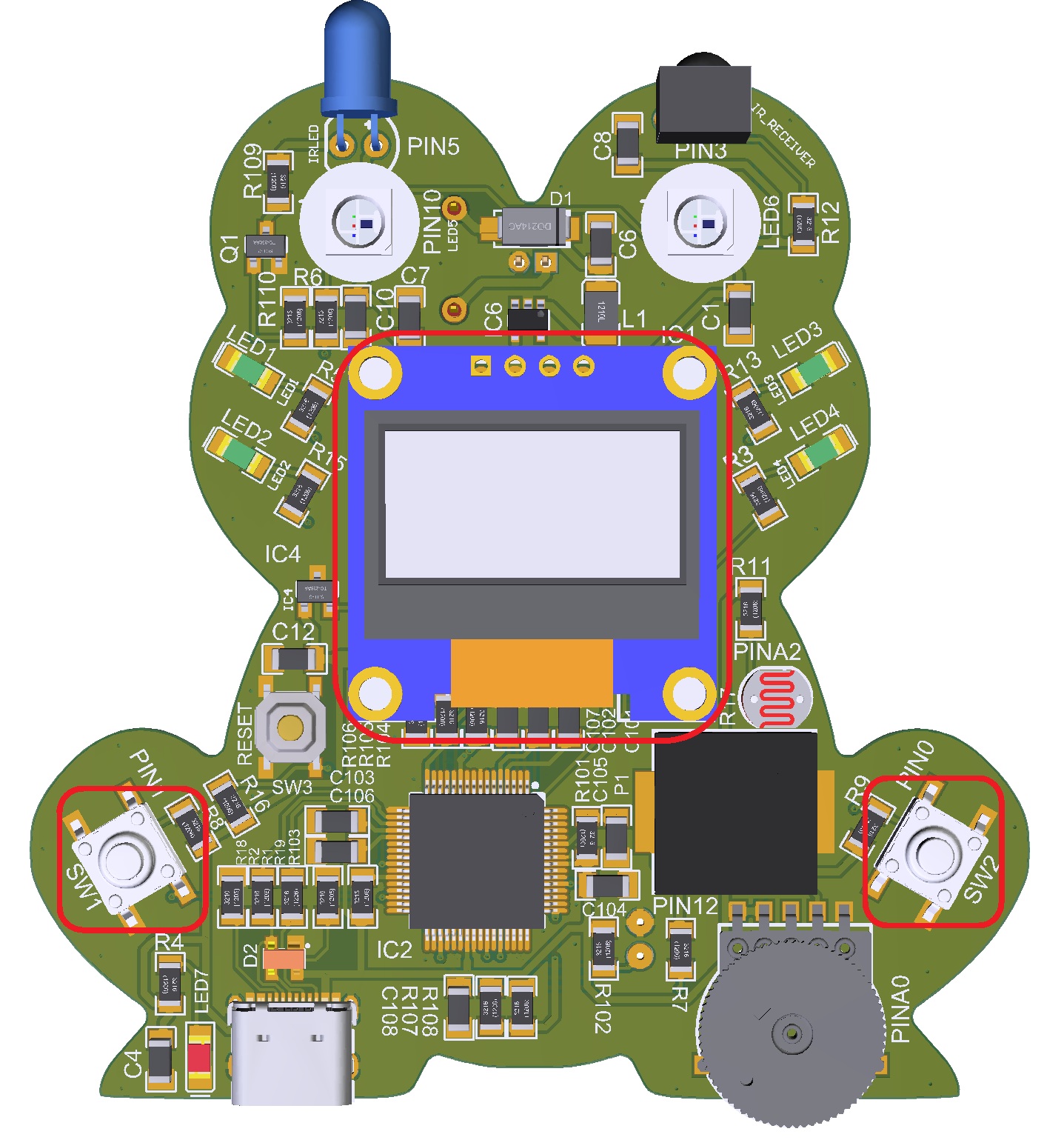
The program combines control, timing, input handling, display, and randomness functions to run the reaction-time game.
Project Code:
					/*
  Reflex_Test.ino
  Copyright (C) 猫咪官网, Inc. 2025

  A reaction-time game that challenges students to press the correct button as fast as possible.

  - Displays prompts (“Ready”, “Go!”) and shows the player’s reaction time.
  - Uses the Frog’s buttons, LEDs, piezo sounder, and OLED display for interaction.
  - Includes foul detection for false starts or slow responses.
*/

#include "1ST_Maker_Frog.h"

// ---------------------------------------------------------------------------
//  Constants and configuration
// ---------------------------------------------------------------------------
#define READY_MIN_MS   1000    // Minimum time before "Go!" (1 second)
#define READY_MAX_MS   3000    // Maximum time before "Go!" (3 seconds)
#define BEEP_HZ        2000    // Frequency of the "Go!" beep
#define BEEP_MS        150     // Duration of the "Go!" beep
#define DEBOUNCE_MS    60      // Time to prevent button bounce
#define FOUL_TIMEOUT   3000    // Maximum allowed reaction time (3 seconds)

// ---------------------------------------------------------------------------
//  Data structures and globals
// ---------------------------------------------------------------------------
enum GameState : uint8_t {
  GS_SPLASH,
  GS_WAIT_START,
  GS_READY_DELAY,
  GS_GO_SHOWN,
  GS_SHOW_RESULT,
  GS_FOUL
};

enum Direction : uint8_t { DIR_LEFT = 0, DIR_RIGHT = 1 };

// Interrupt flags
volatile bool v_anyPress = false;
volatile bool v_sw1Press = false;
volatile bool v_sw2Press = false;
volatile uint32_t v_lastIsrMs = 0;

// Main game state variables
GameState g_state = GS_SPLASH;
Direction g_target = DIR_LEFT;
uint32_t g_stateStartMs = 0;
uint32_t g_goMs = 0;
uint32_t g_readyWait = 0;
uint32_t g_reactionMs = 0;

// ---------------------------------------------------------------------------
//  Function prototypes
// ---------------------------------------------------------------------------
void drawTitle();
void drawReady();
void drawGoAndArrow(Direction dir);
void drawLeftArrow(int16_t cx, int16_t cy, int16_t w, int16_t h);
void drawRightArrow(int16_t cx, int16_t cy, int16_t w, int16_t h);
void showReaction(uint32_t ms);
void showFoul();
void resetFlags();
bool isAnyButtonPressed();
void isrSW1();
void isrSW2();

// ---------------------------------------------------------------------------
//  Setup and main loop
// ---------------------------------------------------------------------------

/**************************************************
 * Function: setup
 * Purpose:  Initialize inputs, outputs, display,
 *           randomness, and interrupt handlers.
 **************************************************/
void setup() {
  randomSeed(analogRead(A0));  // Create randomness for timing

  pinMode(BUTTON_ONE, INPUT_PULLUP);
  pinMode(BUTTON_TWO, INPUT_PULLUP);
  pinMode(PIEZO, OUTPUT);

  for (uint8_t i = 0; i < 4; i++) {
    pinMode(LEDs[i], OUTPUT);
    digitalWrite(LEDs[i], LOW);
  }

  if (!display.begin(SSD1306_SWITCHCAPVCC, SCREEN_ADDRESS)) {
    while (true) {
      digitalWrite(LEDs[0], !digitalRead(LEDs[0]));
      delay(200);
    }
  }

  display.clearDisplay();
  display.display();

  attachInterrupt(digitalPinToInterrupt(BUTTON_ONE), isrSW1, FALLING);
  attachInterrupt(digitalPinToInterrupt(BUTTON_TWO), isrSW2, FALLING);

  drawTitle();
  g_state = GS_WAIT_START;
  g_stateStartMs = millis();
}

/**************************************************
 * Function: loop
 * Purpose:  Run the main game state machine for the
 *           reflex test.
 **************************************************/
void loop() {
  switch (g_state) {

    case GS_WAIT_START: {      // Waiting for player to begin
      noInterrupts();
      bool any = v_anyPress;
      if (any) resetFlags();
      interrupts();

      if (any) {
        g_readyWait = (uint32_t)random(READY_MIN_MS, READY_MAX_MS + 1);
        drawReady();
        g_target = (random(0, 2) == 0) ? DIR_LEFT : DIR_RIGHT;
        g_state = GS_READY_DELAY;
        g_stateStartMs = millis();
      }
    } break;

    case GS_READY_DELAY: {     // Waiting random delay before “Go!”
      if (millis() - g_stateStartMs >= g_readyWait) {
        drawGoAndArrow(g_target);

        // If the player is holding a button when "Go!" appears, it's a foul.
        if (isAnyButtonPressed()) {
          showFoul();        // just show the message; do NOT wait here
          resetFlags();      // clear any ISR edges that happened while held
          g_state = GS_FOUL; // GS_FOUL will handle "wait for release" + "wait for new press"
          break;
        }

        tone(PIEZO, BEEP_HZ, BEEP_MS);
        g_goMs = millis();
        resetFlags();
        g_state = GS_GO_SHOWN;
      }
    } break;

    case GS_GO_SHOWN: {        // Waiting for player response
      bool gotIt = false;

      noInterrupts();
      bool leftHit  = v_sw1Press;
      bool rightHit = v_sw2Press;
      if (leftHit || rightHit) resetFlags();
      interrupts();

      // Check for timeout foul
      if (millis() - g_goMs > FOUL_TIMEOUT) {
        showFoul();
        resetFlags();
        g_state = GS_FOUL;
        break;
      }

      if (g_target == DIR_LEFT && leftHit)   gotIt = true;
      if (g_target == DIR_RIGHT && rightHit) gotIt = true;

      if (gotIt) {
        g_reactionMs = millis() - g_goMs;
        showReaction(g_reactionMs);
        tone(PIEZO, BEEP_HZ + 600, 100);
        g_state = GS_SHOW_RESULT;
        resetFlags();
      }
    } break;

    case GS_SHOW_RESULT: {     // Show reaction time and wait for next start
      noInterrupts();
      bool pressed = v_anyPress;
      if (pressed) resetFlags();
      interrupts();

      if (pressed) {
        drawTitle();
        g_state = GS_WAIT_START;
        g_stateStartMs = millis();
      }
    } break;

    case GS_FOUL: {            // Display foul and wait for reset

      // Step A: if any button is STILL held, keep waiting here.
      if (isAnyButtonPressed()) {
        noInterrupts();
        resetFlags();   // discard any ISR edges while held down
        interrupts();
        break;          // remain in GS_FOUL until both buttons are up
      }

      // Step B: buttons are released now. Wait for a FRESH press to continue.
      noInterrupts();
      bool pressed = v_anyPress;
      if (pressed) resetFlags();
      interrupts();

      if (pressed) {
        drawTitle();
        g_state = GS_WAIT_START;
        g_stateStartMs = millis();
      }
    } break;

    case GS_SPLASH:
    default:
      drawTitle();
      g_state = GS_WAIT_START;
      g_stateStartMs = millis();
      break;
  }
}

/**************************************************
 * Function: drawTitle
 * Purpose:  Show the starting screen and prompt the
 *           player to begin.
 **************************************************/
void drawTitle() {
  display.clearDisplay();
  display.setTextSize(2);
  display.setTextColor(SSD1306_WHITE);
  display.setCursor(25, 0);
  display.print("Reflex");
  display.setCursor(25, 20);
  display.print(" Test");

  display.setTextSize(1);
  display.setCursor(12, 40);
  display.print("Press any button");
  display.setCursor(37, 52);
  display.print("to start");
  display.display();

  for (uint8_t i = 0; i < 4; i++) { digitalWrite(LEDs[i], HIGH); }
  delay(120);
  for (uint8_t i = 0; i < 4; i++) { digitalWrite(LEDs[i], LOW); }
}

/**************************************************
 * Function: drawReady
 * Purpose:  Display the word "Ready" before showing
 *           "Go!".
 **************************************************/
void drawReady() {
  display.clearDisplay();
  display.setTextSize(3);
  display.setTextColor(SSD1306_WHITE);
  const char *txt = "Ready";
  int16_t x1, y1; uint16_t w, h;
  display.getTextBounds(txt, 0, 0, &x1, &y1, &w, &h);

  // Center the text on the screen
  int16_t x = (SCREEN_WIDTH - (int)w) / 2;
  int16_t y = (SCREEN_HEIGHT - (int)h) / 2;

  display.setCursor(x, y);
  display.print(txt);
  display.display();
}

/**************************************************
 * Function: drawGoAndArrow
 * Purpose:  Display "Go!" and the arrow direction to
 *           tell the player which button to press.
 *
 * Parameters:
 *    dir - either DIR_LEFT or DIR_RIGHT, indicating
 *          which arrow to draw.
 **************************************************/
void drawGoAndArrow(Direction dir) {
  display.clearDisplay();
  display.setTextSize(3);
  display.setTextColor(SSD1306_WHITE);
  const char *goTxt = "Go!";
  int16_t x1, y1; uint16_t w, h;
  display.getTextBounds(goTxt, 0, 0, &x1, &y1, &w, &h);
  int16_t gx = (SCREEN_WIDTH - (int)w) / 2;
  display.setCursor(gx, 0);
  display.print(goTxt);

  // Arrow is drawn near the bottom center of the screen
  int16_t cx = SCREEN_WIDTH / 2;
  int16_t cy = (SCREEN_HEIGHT * 3) / 4;
  int16_t aw = 90;
  int16_t ah = 28;
  if (dir == DIR_LEFT)  drawLeftArrow(cx, cy, aw, ah);
  else                  drawRightArrow(cx, cy, aw, ah);

  display.display();
}

/**************************************************
 * Function: drawLeftArrow
 * Purpose:  Draw a large left-pointing arrow on the
 *           screen.
 *
 * Parameters:
 *    cx - x-coordinate of the arrow center.
 *    cy - y-coordinate of the arrow center.
 *    w  - total width of the arrow.
 *    h  - total height of the arrow.
 **************************************************/
void drawLeftArrow(int16_t cx, int16_t cy, int16_t w, int16_t h) {
  int16_t halfH = h / 2;
  int16_t tailW = w * 0.55;
  int16_t headW = w - tailW;
  int16_t left = cx - w / 2;
  int16_t midY = cy;

  display.fillRect(left + headW, midY - halfH, tailW, h, SSD1306_WHITE);
  display.fillTriangle(left, midY, left + headW, midY - halfH,
                       left + headW, midY + halfH, SSD1306_WHITE);
}

/**************************************************
 * Function: drawRightArrow
 * Purpose:  Draw a large right-pointing arrow on the
 *           screen.
 *
 * Parameters:
 *    cx - x-coordinate of the arrow center.
 *    cy - y-coordinate of the arrow center.
 *    w  - total width of the arrow.
 *    h  - total height of the arrow.
 **************************************************/
void drawRightArrow(int16_t cx, int16_t cy, int16_t w, int16_t h) {
  int16_t halfH = h / 2;
  int16_t tailW = w * 0.55;
  int16_t headW = w - tailW;
  int16_t left = cx - w / 2;
  int16_t right = cx + w / 2;
  int16_t midY = cy;

  display.fillRect(left, midY - halfH, tailW, h, SSD1306_WHITE);
  display.fillTriangle(right, midY, right - headW, midY - halfH,
                       right - headW, midY + halfH, SSD1306_WHITE);
}

/**************************************************
 * Function: showReaction
 * Purpose:  Display the player’s reaction time and
 *           flash the LEDs.
 *
 * Parameters:
 *    ms - reaction time in milliseconds to display.
 **************************************************/
void showReaction(uint32_t ms) {
  display.clearDisplay();
  display.setTextSize(2);
  display.setTextColor(SSD1306_WHITE);
  display.setCursor(6, 6);
  display.print("Reaction:");
  display.setTextSize(3);
  display.setCursor(0, 32);
  display.print(ms);
  display.print(" ms");
  display.display();

  // Flash the four LEDs in sequence
  for (uint8_t i = 0; i < 4; i++) {
    digitalWrite(LEDs[i], HIGH);
    delay(80);
    digitalWrite(LEDs[i], LOW);
  }
}

/**************************************************
 * Function: showFoul
 * Purpose:  Display a "Foul!" message and flash LEDs
 *           with a warning tone when rules are broken.
 **************************************************/
void showFoul() {
  display.clearDisplay();
  display.setTextSize(3);
  display.setTextColor(SSD1306_WHITE);
  display.setCursor(25, 18);
  display.print("Foul!");
  display.display();

  tone(PIEZO, 400, 400);
  for (uint8_t i = 0; i < 4; i++) { digitalWrite(LEDs[i], HIGH); }
  delay(250);
  for (uint8_t i = 0; i < 4; i++) { digitalWrite(LEDs[i], LOW); }
}

/**************************************************
 * Function: isAnyButtonPressed
 * Purpose:  Detect if any button is currently pressed.
 *
 * Returns:
 *    true if either button is pressed; otherwise false.
 **************************************************/
bool isAnyButtonPressed() {
  return (digitalRead(BUTTON_ONE) == PRESSED || digitalRead(BUTTON_TWO) == PRESSED);
}

/**************************************************
 * Function: resetFlags
 * Purpose:  Clear button interrupt flags so the next
 *           press can be detected cleanly.
 **************************************************/
void resetFlags() {
  v_anyPress = false;
  v_sw1Press = false;
  v_sw2Press = false;
}

/**************************************************
 * Function: isrSW1
 * Purpose:  Interrupt service routine for left button
 *           (SW1) presses with debounce.
 **************************************************/
void isrSW1() {
  uint32_t now = millis();
  if (now - v_lastIsrMs < DEBOUNCE_MS) return;
  v_lastIsrMs = now;
  v_anyPress = true;
  v_sw1Press = true;
}

/**************************************************
 * Function: isrSW2
 * Purpose:  Interrupt service routine for right button
 *           (SW2) presses with debounce.
 **************************************************/
void isrSW2() {
  uint32_t now = millis();
  if (now - v_lastIsrMs < DEBOUNCE_MS) return;
  v_lastIsrMs = now;
  v_anyPress = true;
  v_sw2Press = true;
}
*If you’re copying and pasting the code, or typing from scratch, delete everything out of a new Arduino sketch and paste / type in the above text.