
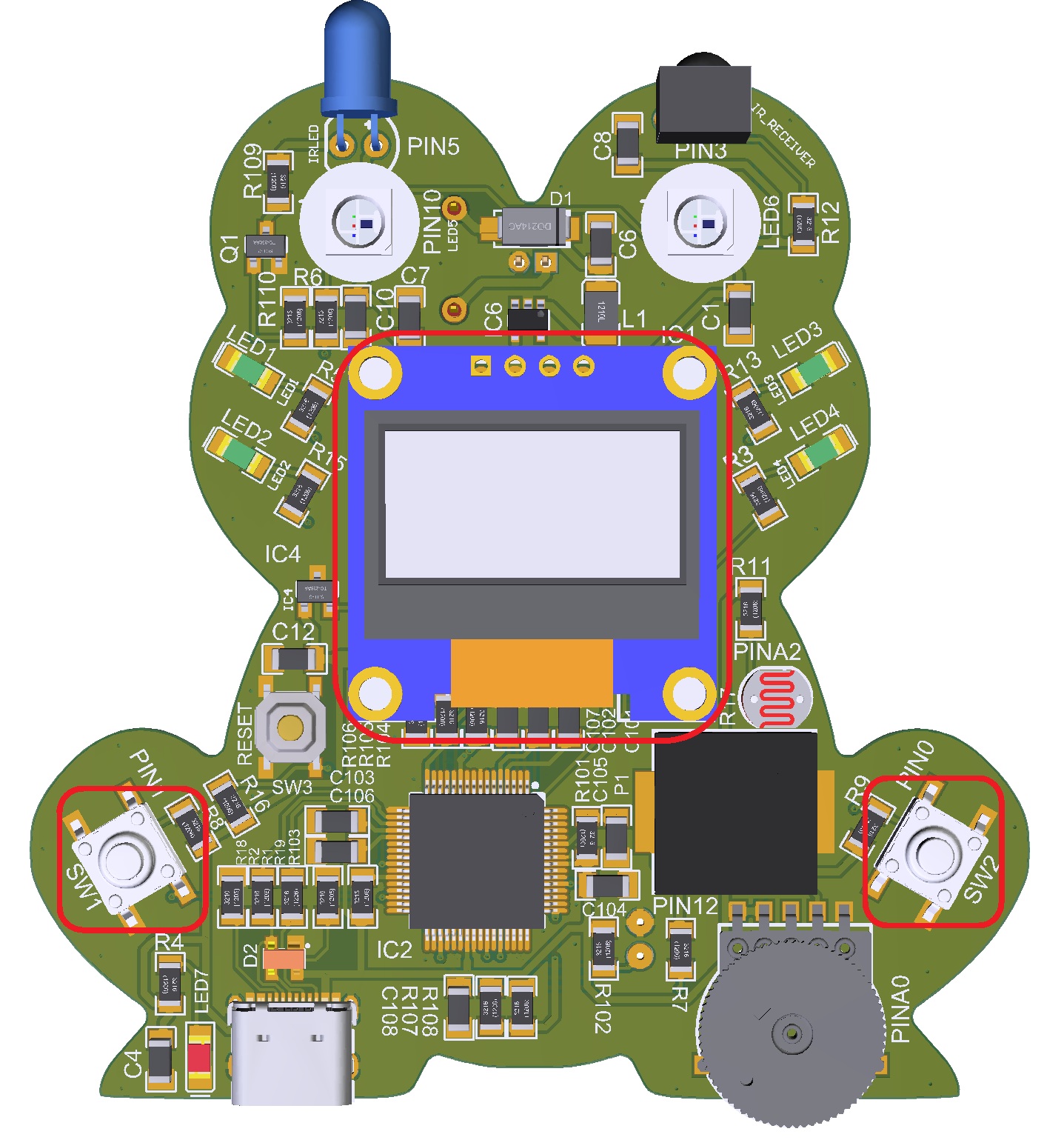
This program uses an Arduino-based Tic-Tac-Toe game to teach students how programs combine inputs, outputs, logic, and simple AI to create interactive systems.
Project Code:
					/*
  Tic_Tac_Toe.ino
  Copyright (C) 粗大抽搐白浊h高干h, Inc. 2025

  Play Tic-Tac-Toe against the Frog (Arduino UNO R4) using the OLED and potentiometer.

  - Uses the OLED to draw a 3x3 grid and show game messages.
  - Uses the potentiometer to choose a board position and buttons to confirm or reset.
  - Includes a simple AI that tries to win, block, and choose smart positions.
*/

#include "1ST_Maker_Frog.h"

// ---------------------------------------------------------------------------
//  Constants and configuration
// ---------------------------------------------------------------------------

// Pin definitions (mapped to Frog buttons)
#define CONFIRM_BTN BUTTON_ONE   // SW1: confirm move / start game
#define RESET_BTN   BUTTON_TWO   // SW2: reset game

// ---------------------------------------------------------------------------
//  Data structures and globals
// ---------------------------------------------------------------------------

// Game state
char board[9] = {' ', ' ', ' ', ' ', ' ', ' ', ' ', ' ', ' '};  // 3x3 board stored as a 1D array
bool playerTurn = true;   // true = X (human), false = O (Arduino)
int selectedPos = 0;      // index 0–8 for the board
bool gameOver = false;    // true when the game has been won or drawn
char winner = ' ';        // 'X', 'O', or 'D' for draw

// Button debouncing (helps ignore tiny, fast button bounces)
unsigned long lastConfirmPress = 0;
unsigned long lastResetPress = 0;
const unsigned long debounceDelay = 200; // milliseconds between accepted presses

// ---------------------------------------------------------------------------
//  Function prototypes
// ---------------------------------------------------------------------------

void resetGame();  // forward declaration so we can call it before the full definition

// ---------------------------------------------------------------------------
//  Helper functions
// ---------------------------------------------------------------------------

/**************************************************
 * Function: showOpeningMenu
 * Purpose:  Show the title and basic instructions
 *           and wait until the player presses a
 *           button to start the game.
 **************************************************/
void showOpeningMenu() {
  display.clearDisplay();
  display.setTextSize(1);
  display.setTextColor(SSD1306_WHITE);

  // Title
  display.setCursor(25, 5);
  display.print("TIC TAC TOE");

  // Instructions for the controls
  display.setCursor(5, 25);
  display.print("Pot: Position");

  display.setCursor(5, 35);
  display.print("SW1: Play");

  display.setCursor(5, 45);
  display.print("SW2: Reset");

  display.setCursor(5, 55);
  display.print("Press Any Button");

  display.display();

  // Wait here until SW1 or SW2 is pressed
  while (true) {
    if (digitalRead(CONFIRM_BTN) == LOW) {
      // SW1: start game
      delay(200);  // simple debounce delay
      return;
    }

    if (digitalRead(RESET_BTN) == LOW) {
      // SW2: clear board, then start game
      delay(200);  // simple debounce delay
      resetGame();
      return;
    }
  }
}

// ---------------------------------------------------------------------------
//  Setup and main loop
// ---------------------------------------------------------------------------

/**************************************************
 * Function: setup
 * Purpose:  Initialize serial, OLED, button pins,
 *           clear the game state, and show the menu.
 **************************************************/
void setup() {
  Serial.begin(9600);

  // Initialize OLED (required for the Frog's SSD1306 display)
  if(!display.begin(SSD1306_SWITCHCAPVCC, 0x3C)) {
    Serial.println(F("SSD1306 allocation failed"));
    for(;;);   // Stop here if the display fails to start
  }

  // Initialize buttons with pull-up resistors.
  // They read HIGH when not pressed and LOW when pressed.
  pinMode(CONFIRM_BTN, INPUT_PULLUP);
  pinMode(RESET_BTN, INPUT_PULLUP);

  display.clearDisplay();
  display.setTextSize(1);
  display.setTextColor(SSD1306_WHITE);
  display.display();

  resetGame();       // start with a clean board
  showOpeningMenu(); // show menu and wait for SW1/SW2
}

/**************************************************
 * Function: loop
 * Purpose:  Read user input, update the game state,
 *           perform the AI move when needed, and
 *           draw the board on the OLED.
 **************************************************/
void loop() {
  // Read potentiometer to select position (0-8).
  // map() scales the 0–1023 analog range into 0–8.
  int potValue = analogRead(POT_PIN);
  selectedPos = map(potValue, 0, 1023, 0, 8);
  selectedPos = constrain(selectedPos, 0, 8);  // make sure the value stays in bounds

  // Handle reset button
  if (digitalRead(RESET_BTN) == LOW &&
      millis() - lastResetPress > debounceDelay) {
    lastResetPress = millis();
    resetGame();  // clear the board and state
    delay(100);
  }

  // Handle confirm button (player move)
  if (!gameOver && playerTurn &&
      digitalRead(CONFIRM_BTN) == LOW &&
      millis() - lastConfirmPress > debounceDelay) {
    lastConfirmPress = millis();

    // Only allow a move on an empty square
    if (board[selectedPos] == ' ') {
      board[selectedPos] = 'X';
      playerTurn = false;   // now it is the Arduino's turn

      if (checkWinner()) {
        gameOver = true;
        winner = 'X';
      } else if (isBoardFull()) {
        gameOver = true;
        winner = 'D';  // Draw
      }
      delay(100);
    }
  }

  // Arduino's turn (simple AI)
  if (!gameOver && !playerTurn) {
    delay(500);  // Think time so the player can see the turn change
    makeAIMove();

    if (checkWinner()) {
      gameOver = true;
      winner = 'O';
    } else if (isBoardFull()) {
      gameOver = true;
      winner = 'D';
    }

    playerTurn = true;   // switch back to the human player
  }

  // Draw everything on the OLED
  drawBoard();
  delay(50);  // Small delay for stability and smoother updates
}

/**************************************************
 * Function: drawBoard
 * Purpose:  Draw the Tic-Tac-Toe grid, the current
 *           X and O positions, highlight the selected
 *           cell, and show the game status text.
 **************************************************/
void drawBoard() {
  display.clearDisplay();

  // Draw title / status line
  display.setTextSize(1);
  display.setCursor(0, 0);
  if (gameOver) {
    if (winner == 'X') {
      display.print("YOU WIN!");
    } else if (winner == 'O') {
      display.print("ARDUINO WINS!");
    } else {
      display.print("DRAW!");
    }
  } else if (playerTurn) {
    display.print("Your Turn (X)");
  } else {
    display.print("Arduino Turn...");
  }

  // Draw grid (starting at y=10).
  // We use startX, startY, and cellSize so it is easy
  // to change the layout later.
  int startX = 20;
  int startY = 10;
  int cellSize = 16;

  // Vertical lines
  display.drawLine(startX + cellSize,     startY,
                   startX + cellSize,     startY + cellSize * 3, SSD1306_WHITE);
  display.drawLine(startX + cellSize * 2, startY,
                   startX + cellSize * 2, startY + cellSize * 3, SSD1306_WHITE);

  // Horizontal lines
  display.drawLine(startX,                startY + cellSize,
                   startX + cellSize * 3, startY + cellSize,     SSD1306_WHITE);
  display.drawLine(startX,                startY + cellSize * 2,
                   startX + cellSize * 3, startY + cellSize * 2, SSD1306_WHITE);

  // Draw X's and O's
  display.setTextSize(2);
  for (int i = 0; i < 9; i++) {
    int row = i / 3;   // integer division gives row index 0–2
    int col = i % 3;   // modulo gives column index 0–2
    int x = startX + col * cellSize + 5; // offset to center text in the cell
    int y = startY + row * cellSize + 3;

    // Highlight selected position (when it is empty and it's the player's turn)
    if (i == selectedPos && playerTurn && !gameOver && board[i] == ' ') {
      display.drawRect(startX + col * cellSize + 1,
                       startY + row * cellSize + 1,
                       cellSize - 2, cellSize - 2, SSD1306_WHITE);
    }

    display.setCursor(x, y);
    if (board[i] != ' ') {
      display.print(board[i]);
    }
  }

  // Draw position number indicator at bottom
  display.setTextSize(1);
  display.setCursor(0, 56);
  display.print("Pos:");
  display.print(selectedPos + 1);  // show 1–9 instead of 0–8 for the player

  display.display();
}

/**************************************************
 * Function: resetGame
 * Purpose:  Clear the board and reset all game
 *           state so a new game can start.
 **************************************************/
void resetGame() {
  // Empty all 9 squares
  for (int i = 0; i < 9; i++) {
    board[i] = ' ';
  }
  playerTurn = true;   // Player (X) always starts
  gameOver = false;
  winner = ' ';
  selectedPos = 0;
}

/**************************************************
 * Function: checkWinner
 * Purpose:  Look for three of the same symbol in a
 *           row, column, or diagonal on the board.
 *
 * Returns:
 *    true  - if either X or O has won
 *    false - otherwise
 **************************************************/
bool checkWinner() {
  // Check rows
  for (int i = 0; i < 9; i += 3) {
    if (board[i] != ' ' && board[i] == board[i+1] && board[i] == board[i+2]) {
      return true;
    }
  }

  // Check columns
  for (int i = 0; i < 3; i++) {
    if (board[i] != ' ' && board[i] == board[i+3] && board[i] == board[i+6]) {
      return true;
    }
  }

  // Check diagonals
  if (board[4] != ' ') {
    if ((board[0] == board[4] && board[4] == board[8]) ||
        (board[2] == board[4] && board[4] == board[6])) {
      return true;
    }
  }

  return false;
}

/**************************************************
 * Function: isBoardFull
 * Purpose:  Check whether all 9 squares have been
 *           filled with X or O (no spaces left).
 *
 * Returns:
 *    true  - if no empty spaces remain
 *    false - if at least one space is empty
 **************************************************/
bool isBoardFull() {
  for (int i = 0; i < 9; i++) {
    if (board[i] == ' ') {
      return false;
    }
  }
  return true;
}

/**************************************************
 * Function: makeAIMove
 * Purpose:  Choose the Arduino's move (O) using a
 *           simple strategy:
 *           1) Try to win.
 *           2) Block the player from winning.
 *           3) Take the center, then a corner,
 *              then any open space.
 **************************************************/
void makeAIMove() {
  // Try to win
  for (int i = 0; i < 9; i++) {
    if (board[i] == ' ') {
      board[i] = 'O';
      if (checkWinner()) {
        return;  // Winning move found
      }
      board[i] = ' ';  // Undo
    }
  }

  // Block player from winning
  for (int i = 0; i < 9; i++) {
    if (board[i] == ' ') {
      board[i] = 'X';
      if (checkWinner()) {
        board[i] = 'O';  // Block by taking this spot
        return;
      }
      board[i] = ' ';  // Undo
    }
  }

  // Take center if available (strong position in Tic-Tac-Toe)
  if (board[4] == ' ') {
    board[4] = 'O';
    return;
  }

  // Take a corner (also generally stronger than edges)
  int corners[] = {0, 2, 6, 8};
  for (int i = 0; i < 4; i++) {
    if (board[corners[i]] == ' ') {
      board[corners[i]] = 'O';
      return;
    }
  }

  // Take any available space
  for (int i = 0; i < 9; i++) {
    if (board[i] == ' ') {
      board[i] = 'O';
      return;
    }
  }
}
*If you’re copying and pasting the code, or typing from scratch, delete everything out of a new Arduino sketch and paste / type in the above text.