
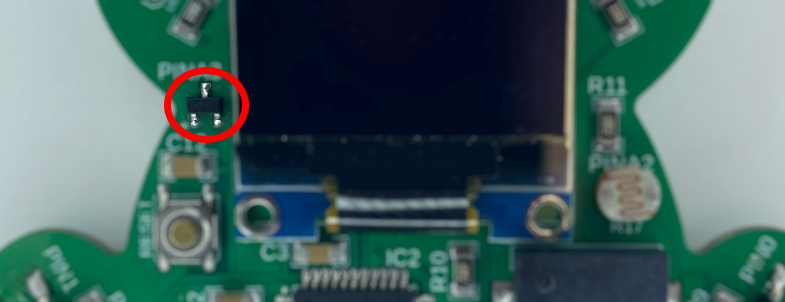
In this project you’ll 睡衣图片 how to read the voltage produced by the temperature sensor. The temperature sensor on the MC Trainer is tiny! It is the tiny black rectangle on the left of the OLED, above the reset button.
Project Code:
					//////////////////////////////////////////////////////
// 9.00 - Using the Temperature Sensor

byte tempSensorPin = A3;

void setup() {
  pinMode(tempSensorPin, INPUT);
  Serial.begin(9600);
}

void loop() {
  int currentTemp = analogRead(tempSensorPin);

  Serial.print("The current temp value is: "); Serial.println(currentTemp);
  delay(1000);

}
//////////////////////////////////////////////////////
*If you’re copying and pasting the code, or typing from scratch, delete everything out of a new Arduino sketch and paste / type in the above text.
The temperature sensor works a lot like the potentiometer and LDR. The difference is that this temperature sensor actually produces a voltage based on the temperature. The potentiometer and LDR were dropping a certain amount of voltage based on some condition.
The temperature sensor again produces an analog voltage based on the temperature. This means that if we want to read that analog value it needs to be on an analog pin. The temperature sensor is connected to the analog pin A3 on the MC Trainer.
byte tempSensorPin = A3;
We are reading the voltage, so the pin is an INPUT.
pinMode(tempSensorPin, INPUT);
In the loop() function, we analog read the voltage produced by the temperature sensor.
int currentTemp = analogRead(tempSensorPin);
After that, we print it onto the Serial port. Make sure to open the Serial port to see the data being printed.
Serial.print("The current temp value is: "); Serial.println(currentTemp);
So that we don’t flood the screen we add in a one second delay.
delay(1000);
Try touching the temperature sensor and seeing how the values change.